 HDR to SDR Movie Converter HDR to SDR Movie Converter
A desktop tone-mapping tool with FFmpeg and HandBrake support, a wide range of curves, and true BT.2390 on the GPU. 10-bit and 12-bit output included, free.
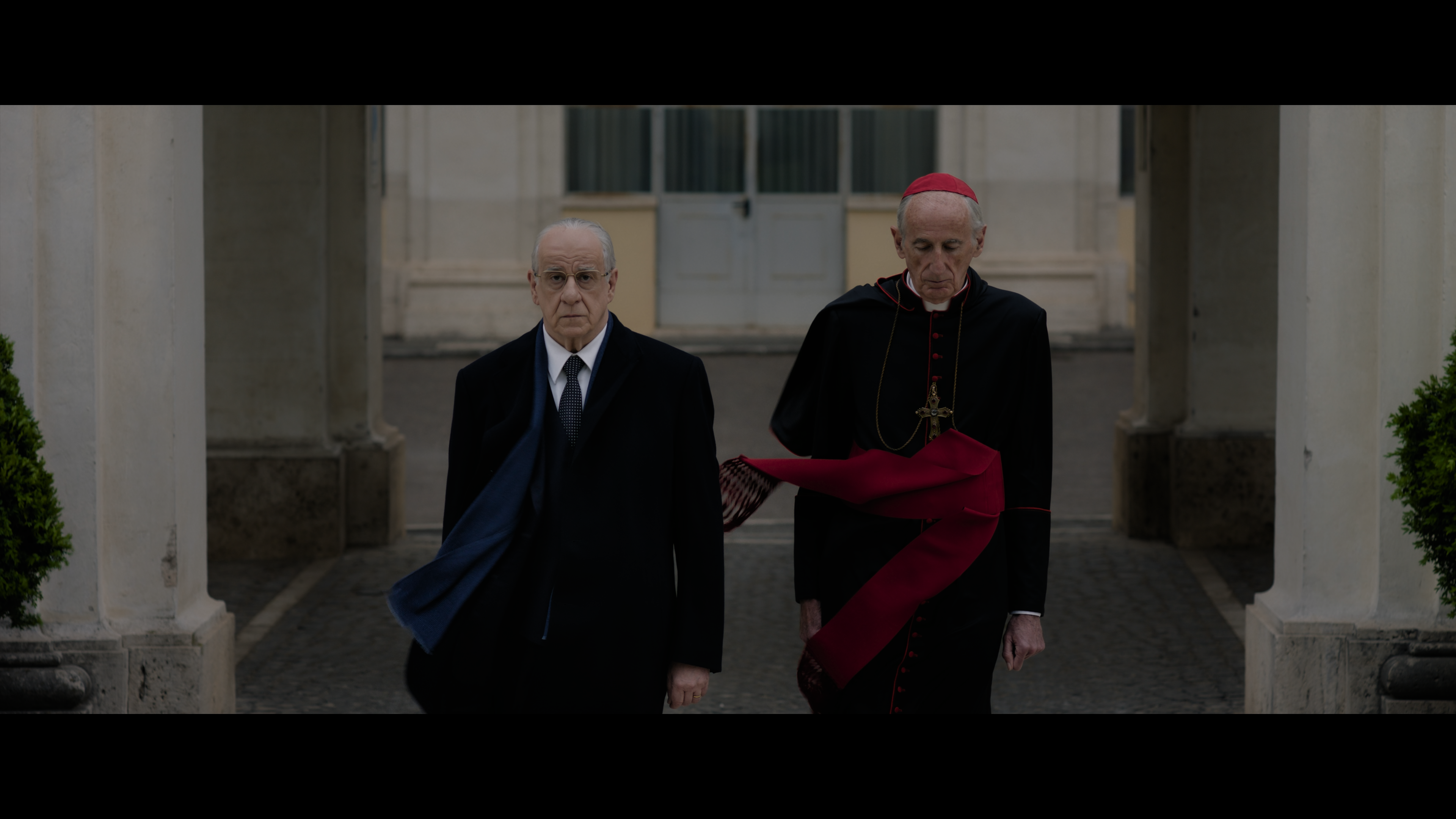
What the movie actually looks like depends entirely on how it's done — no conversion at all, a media player's own quick guess, or a real BT.2390 pass.
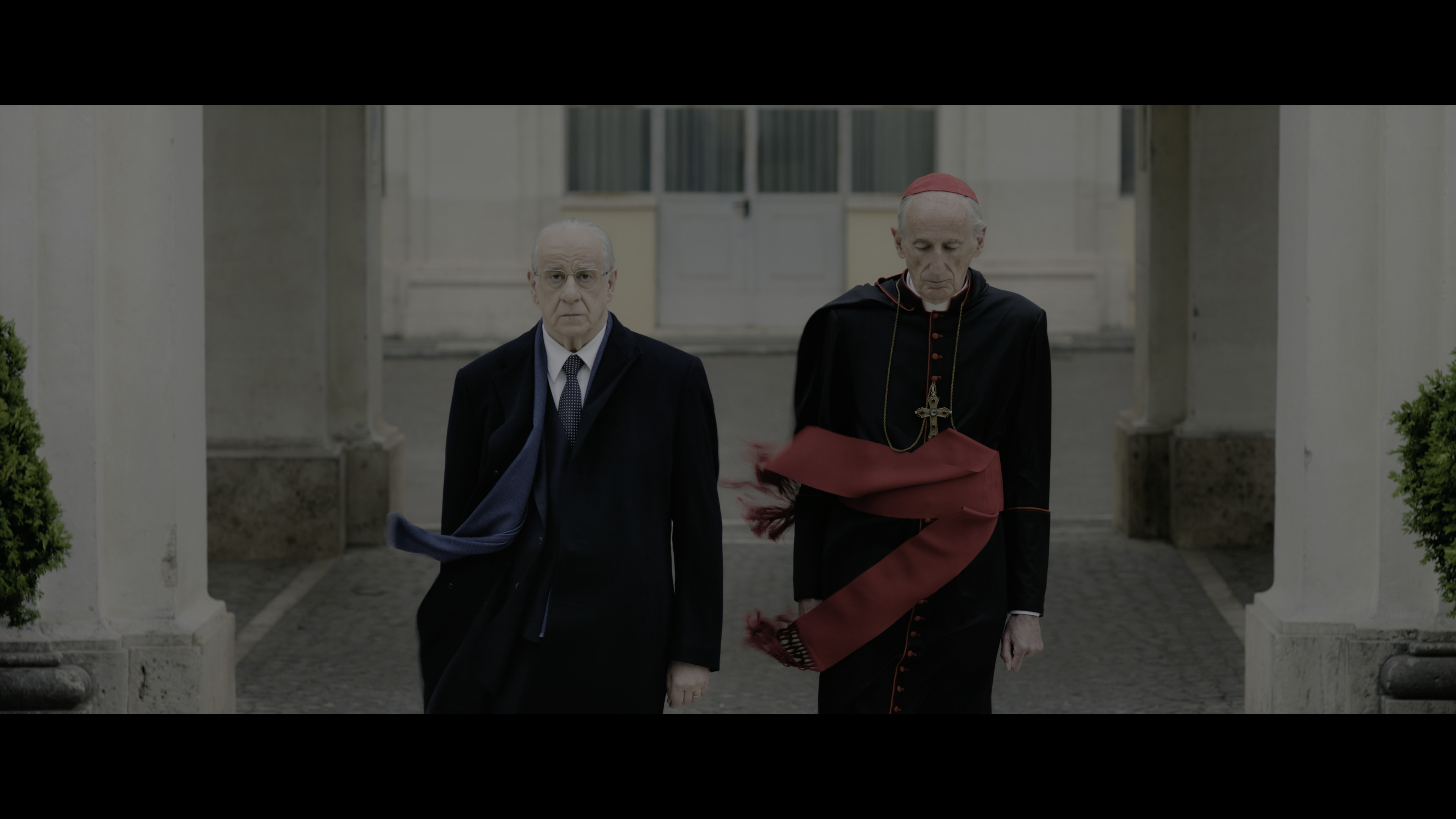
Playing an untouched HDR file on a display or projector that doesn't understand HDR — the PQ/HLG curve is being shown as if it were SDR, so everything looks grey, flat, and washed out.
Players like VLC apply their own quick tone-map so playback is at least watchable — usually a blunt, fixed curve that clips highlights or shifts color, not a deliberate BT.2390 pass with a curve you chose.
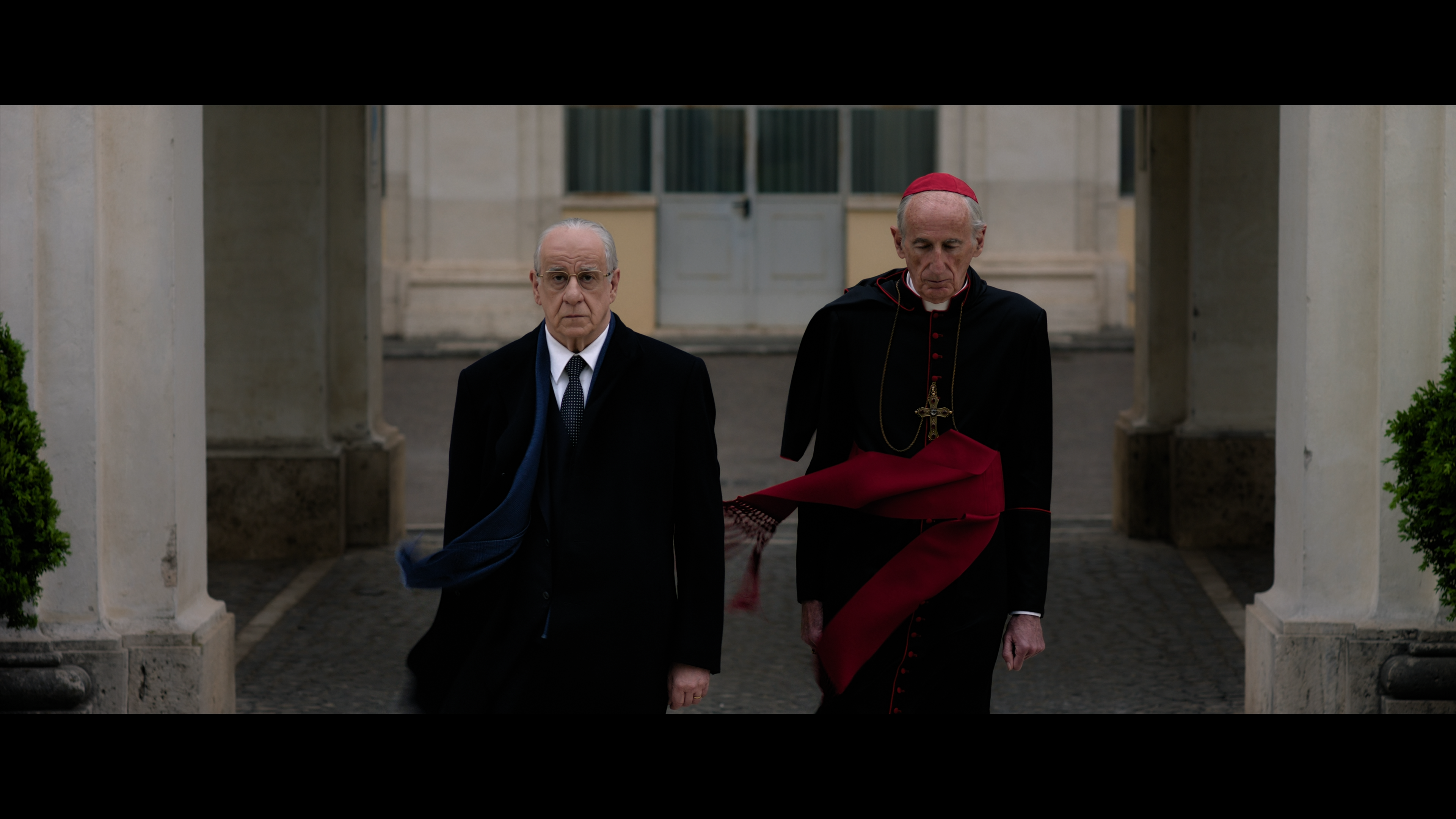
The actual ITU-R BT.2390 EETF, run on the GPU via libplacebo — controlled highlight rolloff and accurate color, output as a real SDR file ready for any standard display.
Same source video, three genuinely different pipelines. Nothing is hidden behind an "auto" button — the backend and curve you choose are the exact ones that run.
The classic tonemap filter. Fast, works everywhere FFmpeg does, no GPU required.
Runs the real ITU-R BT.2390 EETF on the GPU via libplacebo, the same curve reference HDR-to-SDR grades are built around.
An alternate encode path through HandBrakeCLI for cases where its own pipeline behaves better on a given source.
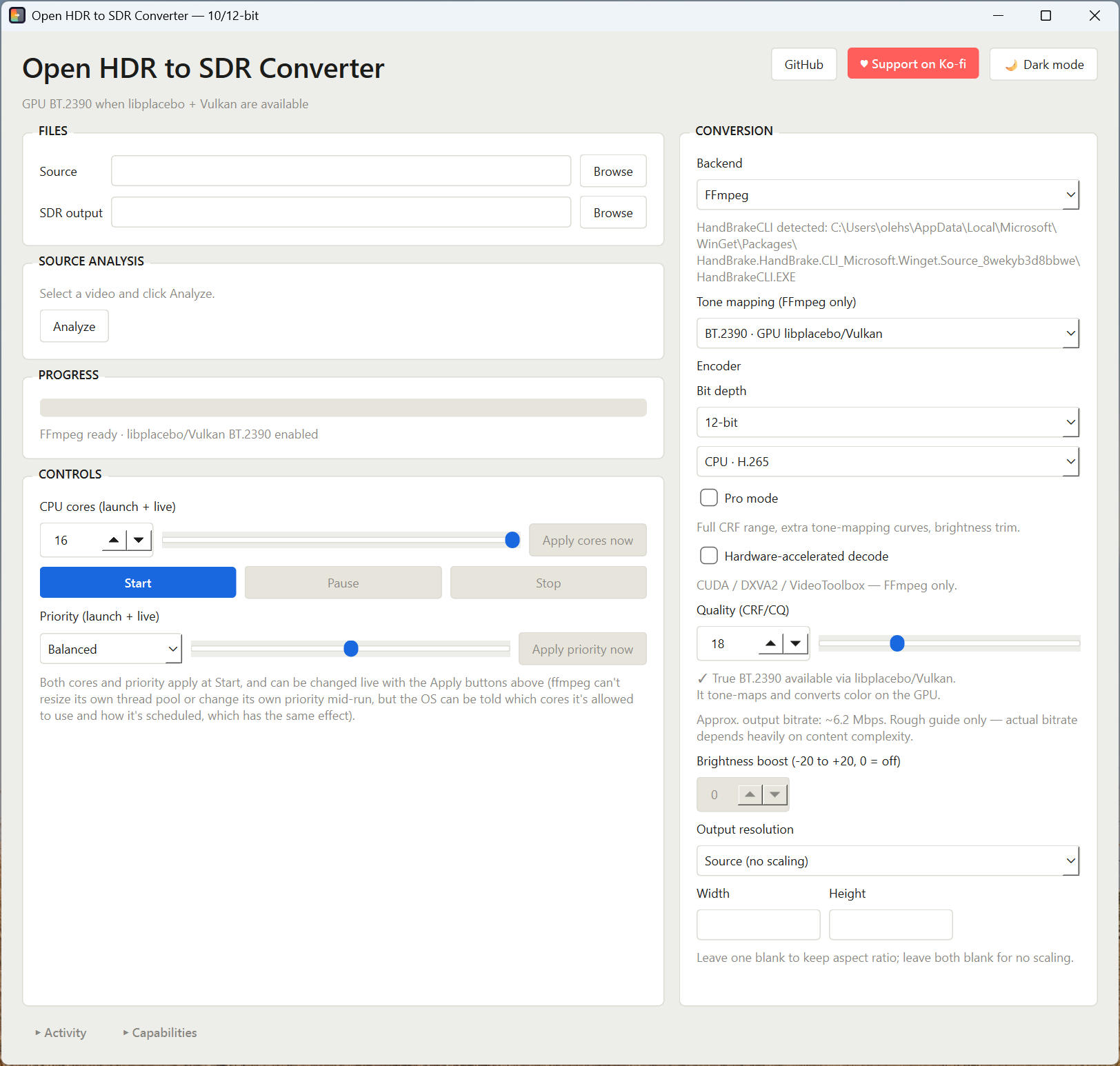
Built around the parts of a tone-mapping job that actually go wrong on real footage: the wrong curve, the wrong encoder, or a process that steals the whole machine while it runs.
Source (no scaling), 4K, 1440p, 1080p, 720p, or 480p. Scaling is height-driven, with width computed automatically so the source's aspect ratio is never stretched.
Pick a source and it's read immediately — transfer characteristics, bit depth, duration, HDR10+/Dolby Vision metadata — with a curve suggested for that specific file. The SDR output path is filled in for you, and dropping a video file anywhere on the window works the same as Browse.
A real decoded, tone-mapped frame from your source that updates as you change settings, with a shadow/highlight clipping check so a curve crushing detail shows up before a full encode. View it full size or save the frame straight to disk.
Updates automatically as quality, resolution, or encoder change, so a surprising CRF/resolution combo is visible before you hit Start.
Hover any tone-mapping curve for a plain-language rundown of what it actually trades off — not marketing copy.
x264/x265 on CPU, or hardware encode via NVIDIA NVENC, AMD AMF, or Apple VideoToolbox, in H.264 or H.265.
Free, no license required, no separate build. 10-bit works with any H.265 encoder (CPU or hardware); 12-bit is available via libx265 on CPU — the app only shows encoders that actually support the bit depth you picked.
Opens the full CRF/CQ range (0–51), a brightness offset control, and the extra tone-map curves — kept out of the way until you ask for them.
CUDA / DXVA2 / VideoToolbox decode for the FFmpeg backend, so the GPU is doing the reading as well as the tone-mapping.
Efficiency, Balanced, or Performance, plus a live CPU-core limit — both applied at Start and adjustable while a conversion is running, so a long batch doesn't have to lock up the rest of your machine.
A collapsible live log streams the actual FFmpeg/HandBrake output and progress; a System panel reports what's detected on your system — FFmpeg, Vulkan, HandBrakeCLI — before you hit convert.
Missing FFmpeg or HandBrakeCLI is installed via winget from inside the app — from the System panel, or the "Quick install" shortcut right next to it — with install output streamed into Activity.
A Windows build if you just want to run it, or the source if you're on macOS/Linux or want to read the code first.
Single-file build, no Python required. FFmpeg is still needed separately — or install it in-app via winget.
Always the newest release · Windows 10/11
Requires Python 3.10+ and pip install -r requirements.txt. Runs on Windows, macOS, and Linux.
MIT licensed · main branch
The app is a single PySide6 script. No installer, no background service — you run it, it shells out to FFmpeg (and optionally HandBrakeCLI) directly.
What needs to be on the machine before you launch it.
| Component | Needed for |
|---|---|
| Python 3.10+ | Running the app itself |
| PySide6 | The Qt-based UI |
| FFmpeg (full/GPL build, with libx264 + libx265) | Standard and GPU tone-mapping backends |
| Vulkan-capable GPU + drivers | The libplacebo/BT.2390 backend specifically |
| HandBrakeCLI (optional) | The HandBrake backend |
| psutil (optional) | Live pause/resume, CPU-core control, and CPU/GPU resource stats |
This app doesn't bundle FFmpeg or HandBrakeCLI — they're installed on your own machine, straight from their authors' official channels, via winget.
| Tool | Source | winget package ID | License |
|---|---|---|---|
| FFmpeg | gyan.dev full build | Gyan.FFmpeg | GPLv3 |
| HandBrakeCLI | HandBrake official release | HandBrake.HandBrake.CLI | GPLv2 |
Both are independent open-source projects — full credit to their authors and contributors. This app is a GUI front end that shells out to them as separate processes; it doesn't modify, link against, or redistribute their code, and each keeps its own license regardless of this app's own MIT license. Prefer to install them yourself instead of the in-app installer? That works too — the app just looks for ffmpeg, ffprobe, and HandBrakeCLI on your PATH.
Three commands, then you're looking at the window.
# 1. Get the script and its Python dependencies
pip install PySide6 psutil

# 2. Make sure FFmpeg is on your PATH
ffmpeg -version

# 3. Launch
python hdr_to_sdr_gui_qt.py
From HDR source file to SDR output.
All of these are real, documented FFmpeg/libplacebo tone-mapping options — nothing here is invented.
| Curve | Backend | When to reach for it |
|---|---|---|
| BT.2390 | GPU | Default choice — the reference EETF most HDR-to-SDR grades target |
| Hable | CPU | Filmic rolloff, no GPU needed |
| Reinhard / Mobius | CPU | Softer highlight rolloff alternatives to Hable |
| BT.2446A | GPU · Pro | Broadcast-oriented alternative to BT.2390 |
| ST2094-10 / ST2094-40 | GPU · Pro | Dynamic tone-mapping; ST2094-40 uses HDR10+ metadata when present |
| Linear / Gamma / Clip / None | CPU · Pro | Diagnostic or manual-grading passes, not general use |
The System panel is the first stop — it reports exactly what was detected before you file this as a bug.
libx264/libx265. Use "Install missing (winget)" in the System panel, which installs the full GPL build automatically.